

Installation
Installation Guide
There are two ways to install OpenNVR. Most people want the first one.
- Tier 0 — pre-built images (recommended). Pull the published container images from GHCR and you’re running in about five minutes. No source build, no toolchain, no waiting on PyTorch to compile.
- Build from source (contributors). Build the images locally from your own tree. Slower, but the right path if you’re modifying the code.
Both run the same Docker services: opennvr-core, mediamtx, db, nats, and one or more AI adapters.
Prerequisites
Install Docker with Compose v2.
Windows / macOS — install Docker Desktop and wait for it to report “Docker is running.”
Linux (Ubuntu / Debian) —
curl -fsSL https://get.docker.com | sudo sh
sudo usermod -aG docker $USER && newgrp docker
docker compose version   # confirm Compose v2 is present
You’ll also want a camera with ONVIF or RTSP support. Most modern IP cameras qualify; phone-webcam apps like IP Webcam work for testing. Budget about 8 GB RAM and 20 GB free disk (most of which is AI model weights).
Tier 0 — pre-built images (recommended)
Five minutes from git clone to YOLOv8 detection on your camera feed.
git clone https://github.com/open-nvr/open-nvr.git
cd open-nvr
cp .env.example .env
./scripts/generate-secrets.sh --write          # Windows: .\scripts\generate-secrets.ps1 -Write
docker compose -f docker-compose.tier0.yml up -d
The generate-secrets script writes cryptographically random values into .env for the four secrets the core validates at boot. There are no shipped default credentials — the core refuses to start if any secret is a placeholder.
On first start the core prints a one-time setup token to its log. Grab it:
docker compose -f docker-compose.tier0.yml logs opennvr-core | grep -i 'setup token'Open http://localhost:8000, paste the token, choose an admin username and password, and add a camera. Detection overlays appear within about thirty seconds of the camera connecting.
Tier 0 pulls
opennvr-coreand the YOLOv8 adapter image straight from GHCR — no local build. The other shipped adapters lazy-pull when you enable them.
Talk to your cameras — the camera-agent overlay
Once Tier 0 is up, layer on the voice agent so you can ask your cameras questions out loud.
# Pull the LLM the agent uses (~2 GB, one-time)
docker compose -f docker-compose.tier0.yml \
               -f docker-compose.camera-agent.yml \
               --profile camera-agent run --rm ollama-model-pull

# Bring up the overlay
docker compose -f docker-compose.tier0.yml \
               -f docker-compose.camera-agent.yml \
               --profile camera-agent up -d
Open http://localhost:9100/demo, click Start, and ask “is there a person at the front door?” — Whisper transcribes, a local Ollama LLM calls YOLOv8 and BLIP on a live frame, and Piper speaks the answer back. All on your hardware.
Build from source (contributors)
If you’re modifying OpenNVR, build the images from your tree instead of pulling them. Clone both repositories into the same parent directory so the adapter volume mounts resolve:
git clone https://github.com/open-nvr/open-nvr.git
git clone https://github.com/open-nvr/ai-adapter.git
cd open-nvr
The included launcher scripts detect your OS and pick the correct compose file. On first run they trigger an interactive setup that generates secrets and prints your admin credentials — save them.
Linux / macOS:
chmod +x start.sh
./start.sh
Windows (PowerShell):
.\start.ps1
The first source build downloads every dependency and can take 30–60 minutes (PyTorch alone is ~800 MB). Subsequent builds use Docker’s layer cache and finish in seconds. This is exactly the wait the Tier 0 path skips.
If you’d rather run the steps yourself: docker compose build && docker compose up -d on Windows/macOS, or docker compose -f docker-compose.linux.yml build && docker compose -f docker-compose.linux.yml up -d on Linux.
Verify
docker compose -f docker-compose.tier0.yml psNAME STATUS
opennvr_core Up (healthy)
opennvr_db Up (healthy)
opennvr_mediamtx Up (healthy)
opennvr_nats Up (healthy)
opennvr_yolov8_adapter Up (healthy)curl http://localhost:8000/health # {"status": "healthy"}Access the Web UI
Open http://localhost:8000. On first boot you’re redirected to First-Time Setup, where you set the admin password before reaching the dashboard.
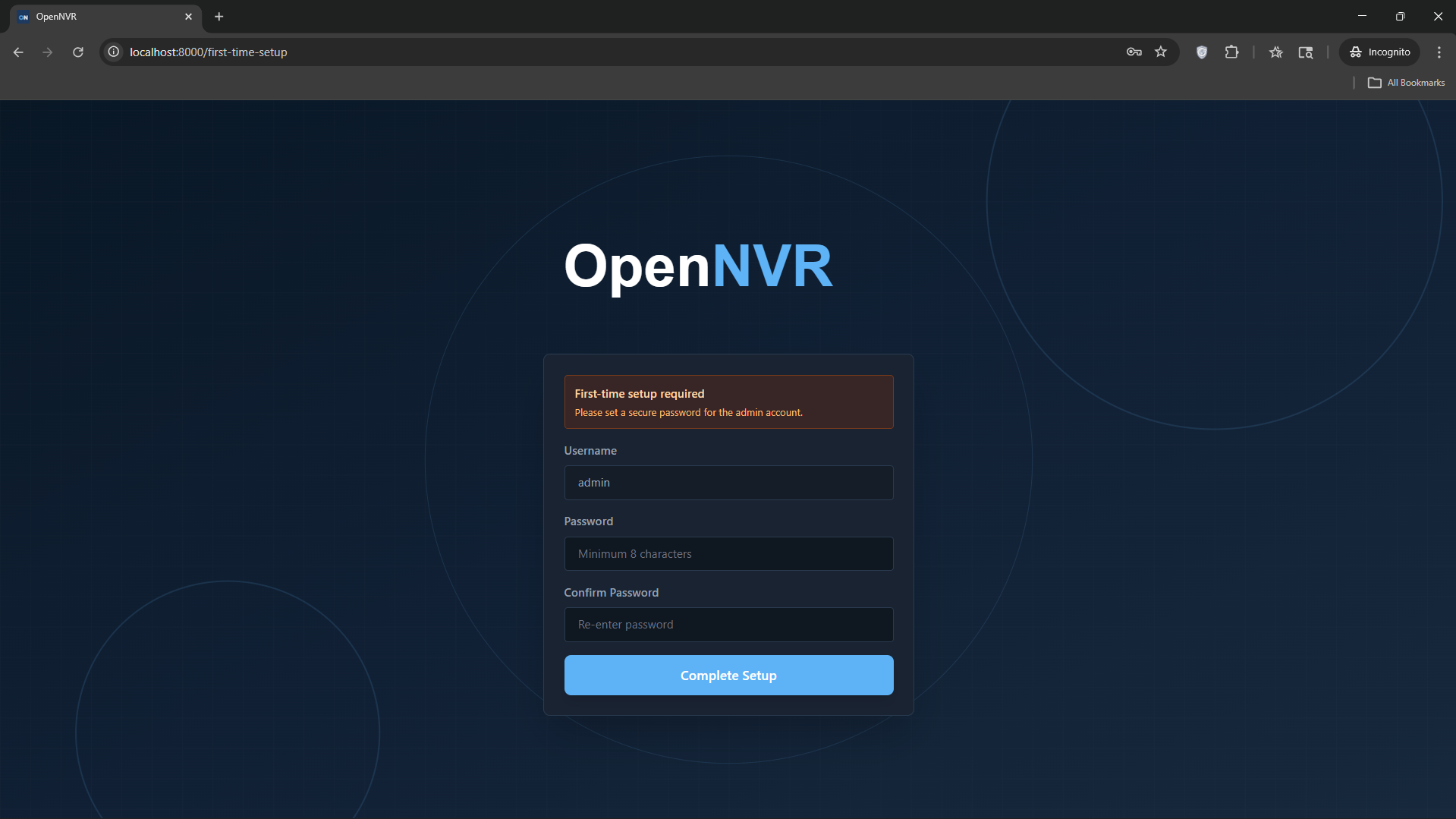
OpenNVR enforces strong-password requirements. Keep these credentials safe.
Network architecture
Network mode is selected per OS:
| OS | Network Mode | ONVIF Discovery | Container Addressing |
|---|---|---|---|
| Windows / macOS | Bridge | Manual only | http://opennvr_core:8000 |
| Linux | Host | Auto-discovery | http://127.0.0.1:8000 |
ONVIF auto-discovery uses UDP multicast, which doesn’t traverse Docker’s bridge driver — that’s why Linux host-mode (docker-compose.linux.yml) gets it and bridge-mode deployments add cameras by RTSP URL.
Common commands
# Tail logs
docker compose -f docker-compose.tier0.yml logs -f

# Refresh to the latest published images
docker compose -f docker-compose.tier0.yml pull
docker compose -f docker-compose.tier0.yml up -d

# Stop everything
docker compose -f docker-compose.tier0.yml down
Next steps
- Add a camera → Cameras → Add (ONVIF discovery, or RTSP URL).
- Configure AI detection → AI Models (YOLOv8 is on by default in Tier 0).
- Set retention → per-camera recording settings.
- Talk to your cameras → add the camera-agent overlay.
- Build something → start from a shipped example in the ai-adapter repo.