Access Control (RBAC)
Manage users, roles, per-role permissions, and the global password policy in OpenNVR — the exact tabs, forms, and seeded roles.
On this page
Access Control (RBAC) is where you create user accounts, define roles, assign permissions to those roles, and set the account-wide password policy. You’ll find it under Access Control (RBAC) in the sidebar (route /rbac).
[!NOTE] Viewing this area requires the
users.viewpermission. All four sub-tabs — Users, Roles, Permissions, and Password Policy — are superuser-only. A non-superuser who reaches the page sees “Admin only: you don’t have permission…” instead of the management controls.
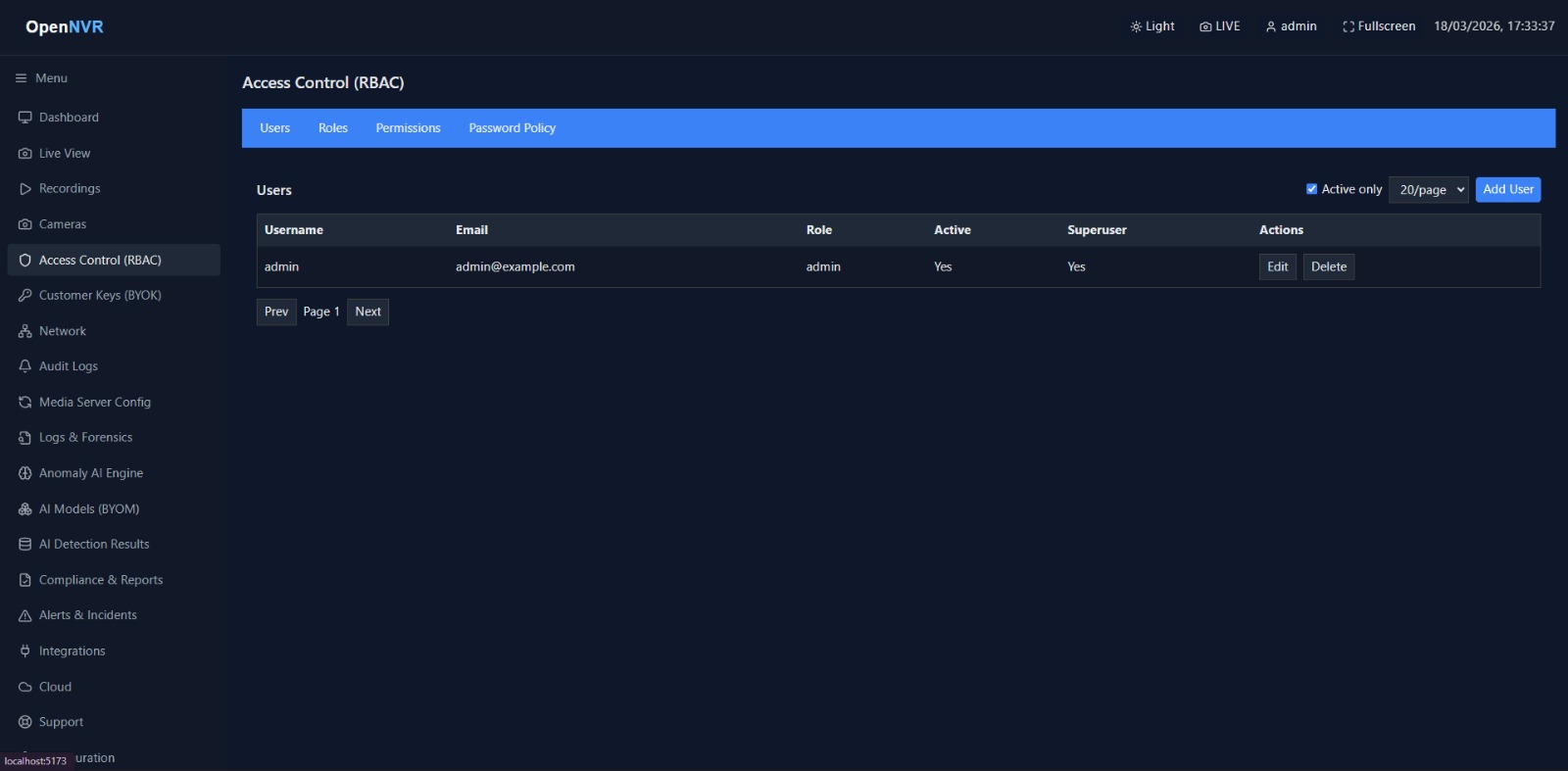
The page has four sub-tabs across the top: Users, Roles, Permissions, and Password Policy.
What you can do here
- Users — add, edit, and delete user accounts; toggle a user active/inactive; assign each user a role.
- Roles — create, rename, describe, and delete roles.
- Permissions — pick a role and tick exactly which permissions it grants.
- Password Policy — set the account-wide password rules, lockout thresholds, and MFA requirement.
Users
The Users tab lists every account with its Username, Email, Role, Active, and Superuser status, plus Edit / Delete actions per row. Use the Active only checkbox to hide deactivated accounts and the N/page dropdown (10, 20, 50) to control page size.
Add a user
- Click Add User (top-right). The Add New User dialog opens.
- Fill in the fields below.
- Click Create User.
Edit a user
- Click Edit on the user’s row. The Edit User dialog opens.
- Change any field — note the Username is shown but disabled (immutable once created).
- Toggle the Active checkbox to enable/disable the account.
- Click Update User.
To remove an account, click Delete on its row and confirm the prompt.
Fields
| Field | Required | Example | Notes |
|---|---|---|---|
| Username | ✓ | jsmith |
Immutable — cannot be changed after the user is created |
| ✓ | jsmith@example.com |
||
| First Name | — | ||
| Last Name | — | ||
| Password | ✓ | Create dialog only; minimum 8 characters. Not shown when editing | |
| Role | ✓ | operator |
Dropdown populated from the Roles tab |
| Active | — | (checked) | Edit dialog only; unchecking deactivates the account |
[!NOTE] The Superuser flag is not editable from this form. The seeded
adminaccount is a superuser; new users created here are regular (non-superuser) accounts whose access is governed entirely by their role.
Roles
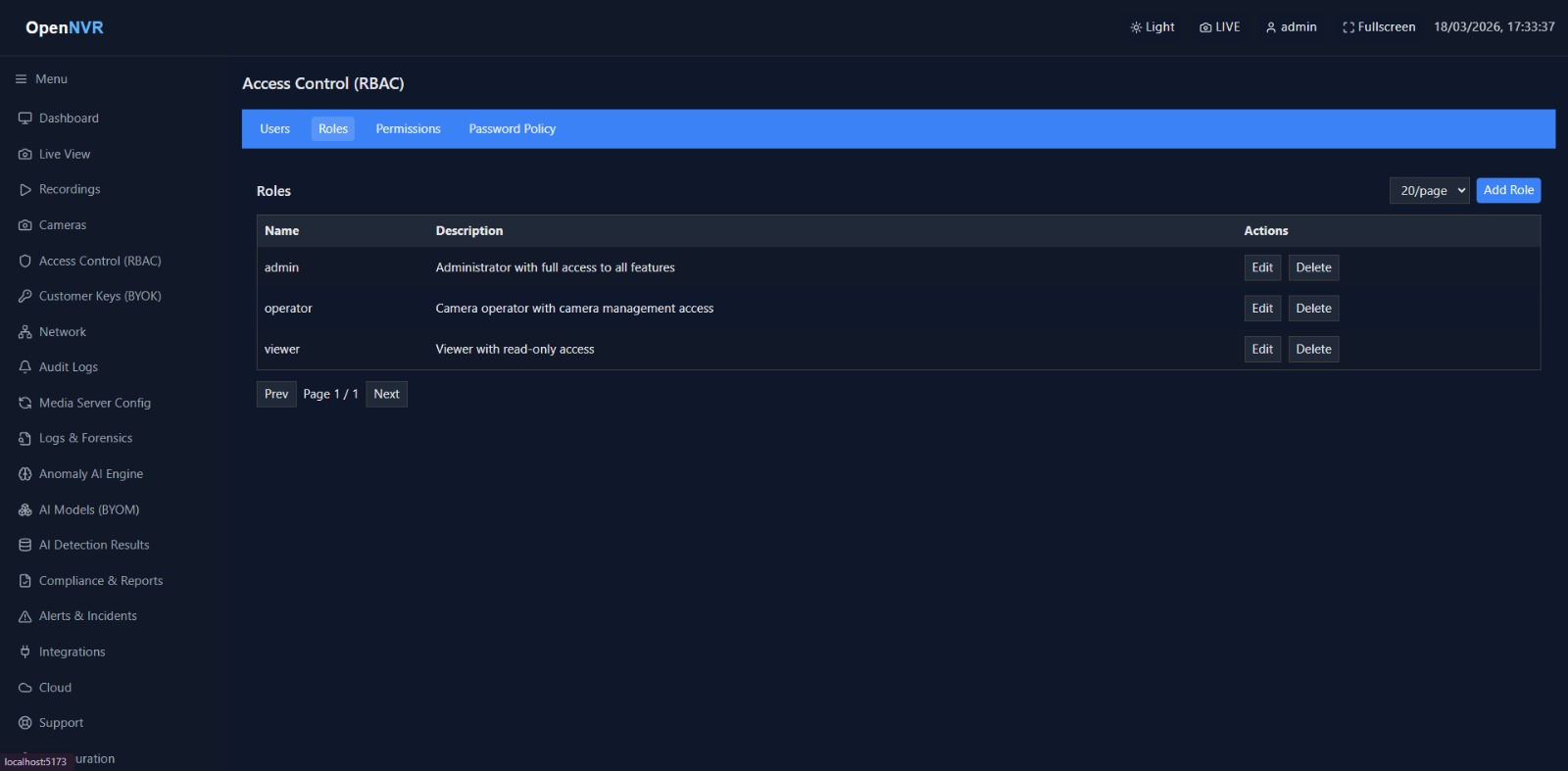
Roles are named bundles of permissions. Each user is assigned exactly one role.
Add or edit a role
- On the Roles tab, click Add Role (or Edit on an existing row).
- Set the Name and optional Description.
- Click Create Role / Update Role.
Click Delete on a row to remove a role (confirmation required).
Fields
| Field | Required | Example | Notes |
|---|---|---|---|
| Name | ✓ | security-operator |
1–50 characters |
| Description | — | Read-only access for auditors |
Free text |
Seeded roles
OpenNVR ships with three roles created on first database initialization:
| Role | Description | Permissions |
|---|---|---|
| admin | Administrator with full access to all features | All permissions |
| operator | Camera operator with camera management access | cameras.view, cameras.manage, live.view, recordings.view, settings.view, network.view, onvif.discover, alerts.view, ai.view |
| viewer | Viewer with read-only access | cameras.view, live.view, recordings.view |
Permissions
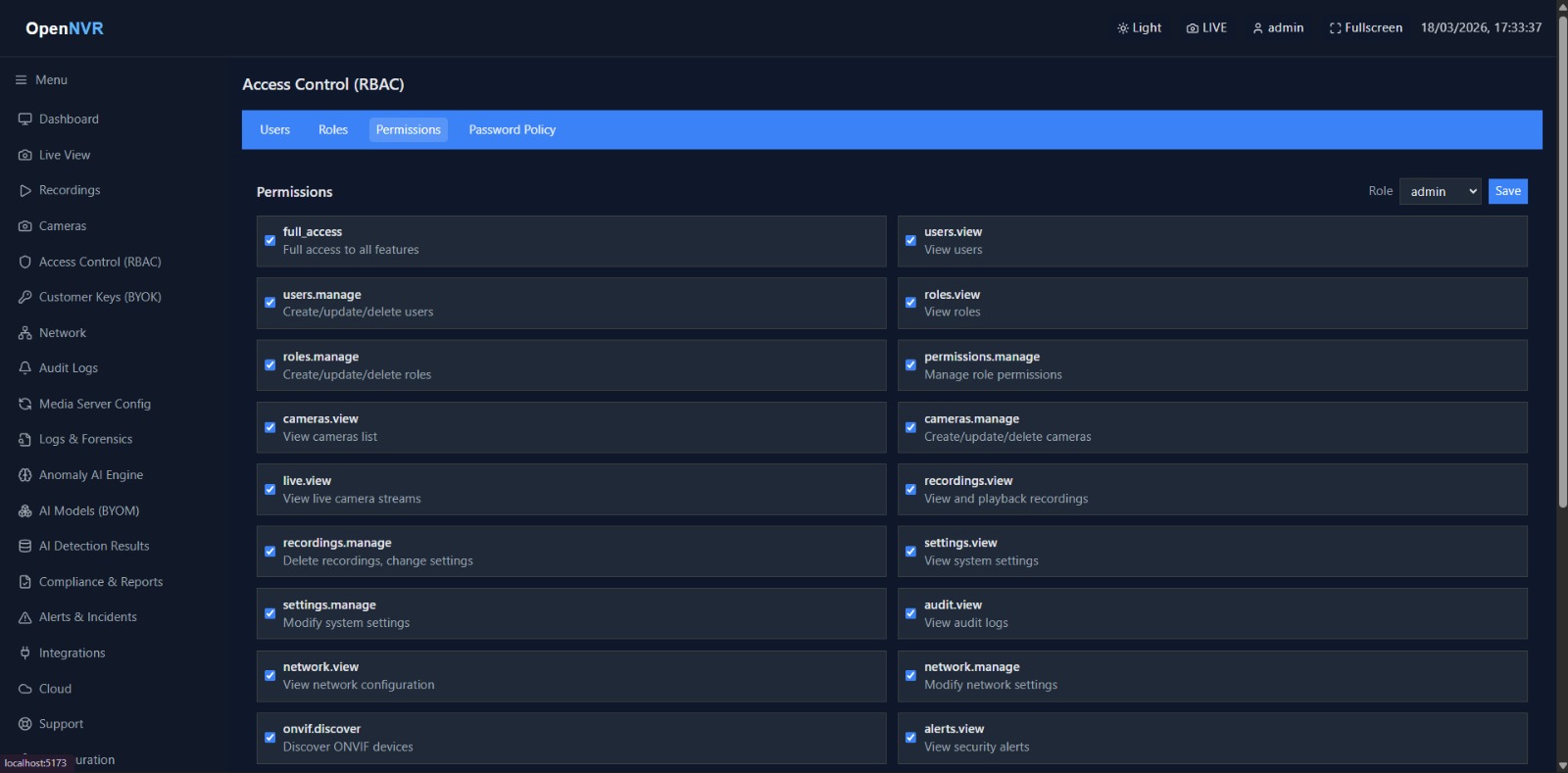
The Permissions tab assigns individual permissions to a role.
- Pick a role from the Role dropdown (top-right).
- Tick or untick each permission in the grid — every catalog entry shows its name and description.
- Click Save to apply. Saving replaces the role’s full permission set with your current selection.
Permission catalog
These are the permissions seeded into a fresh install, grouped by area:
| Area | Permission | Grants |
|---|---|---|
| Global | full_access |
Full access to all features |
| Users | users.view |
View users |
| Users | users.manage |
Create/update/delete users |
| Roles | roles.view |
View roles |
| Roles | roles.manage |
Create/update/delete roles |
| Roles | permissions.manage |
Manage role permissions |
| Cameras | cameras.view |
View cameras list |
| Cameras | cameras.manage |
Create/update/delete cameras |
| Live | live.view |
View live camera streams |
| Recordings | recordings.view |
View and playback recordings |
| Recordings | recordings.manage |
Delete recordings, change settings |
| Settings | settings.view |
View system settings |
| Settings | settings.manage |
Modify system settings |
| Audit | audit.view |
View audit logs |
| Network | network.view |
View network configuration |
| Network | network.manage |
Modify network settings |
| ONVIF | onvif.discover |
Discover ONVIF devices |
| Alerts | alerts.view |
View security alerts |
| Alerts | alerts.manage |
Acknowledge/dismiss alerts |
| Integrations | integrations.view |
View integrations |
| Integrations | integrations.manage |
Configure integrations |
| Cloud | cloud.view |
View cloud settings |
| Cloud | cloud.manage |
Configure cloud settings |
| Firmware | firmware.view |
View firmware/update status |
| Firmware | firmware.manage |
Apply firmware updates |
| AI | ai.view |
View AI engine status |
| AI | ai.manage |
Configure AI models |
| Apps | apps.install |
Install/uninstall curated App Store apps |
| Compliance | compliance.view |
View compliance reports |
| BYOK | byok.manage |
Manage customer encryption keys |
| BYOM | byom.manage |
Manage custom AI models |
[!TIP] The
adminrole holds every permission in the catalog. To build a least-privilege role, start from a small set (e.g. theviewerdefaults) and add only what a job actually needs.
Password Policy
The Password Policy tab sets the account-wide rules enforced when passwords are created or changed. Adjust the fields, then click Save.
Fields
| Field | Type | Default | Notes |
|---|---|---|---|
| Minimum length | number | 12 |
Range 4–128 |
| Required character classes | select | 3 |
Choose 1–4 (uppercase, lowercase, digits, symbols) |
| Disallow username/email in password | checkbox | on | Blocks passwords containing the username or email |
| Enable passphrase mode | checkbox | on | Allows long passphrases in place of complexity rules |
| Passphrase min length | number | 16 |
Range 8–256 |
| Password history (disallow last N) | number | 5 |
Range 0–50; blocks reuse of recent passwords |
| Expiration (days, 0 = off) | number | 0 |
Range 0–3650; 0 disables expiry |
| Max failed attempts | number | 5 |
Range 0–50 before lockout |
| Lockout (minutes) | number | 15 |
Range 0–1440 |
| Reset token TTL (minutes) | number | 15 |
Range 1–1440; lifetime of a password-reset token |
| Require MFA for admin/operator | checkbox | on | Forces MFA for privileged roles |
[!WARNING] The seeded
adminaccount is created with MFA enabled by default. If Require MFA for admin/operator is on, privileged accounts must complete MFA setup to sign in.
📸 Screenshots to capture
Capture these from the running app and save them to opennvr-site/public/screenshots/ with the exact filenames below:
rbac-add-user.png— the Add New User dialog with Username, Email, First/Last Name, Password, and the Role dropdown visible.rbac-roles.png— the Roles tab showing the seededadmin,operator, andviewerrows with Edit/Delete actions.rbac-password-policy.png— the Password Policy tab with all the fields and the Save button.