Audit Logs
Search and review OpenNVR's record of logins, camera changes, user management, and configuration updates — with filters and per-entry detail.
On this page
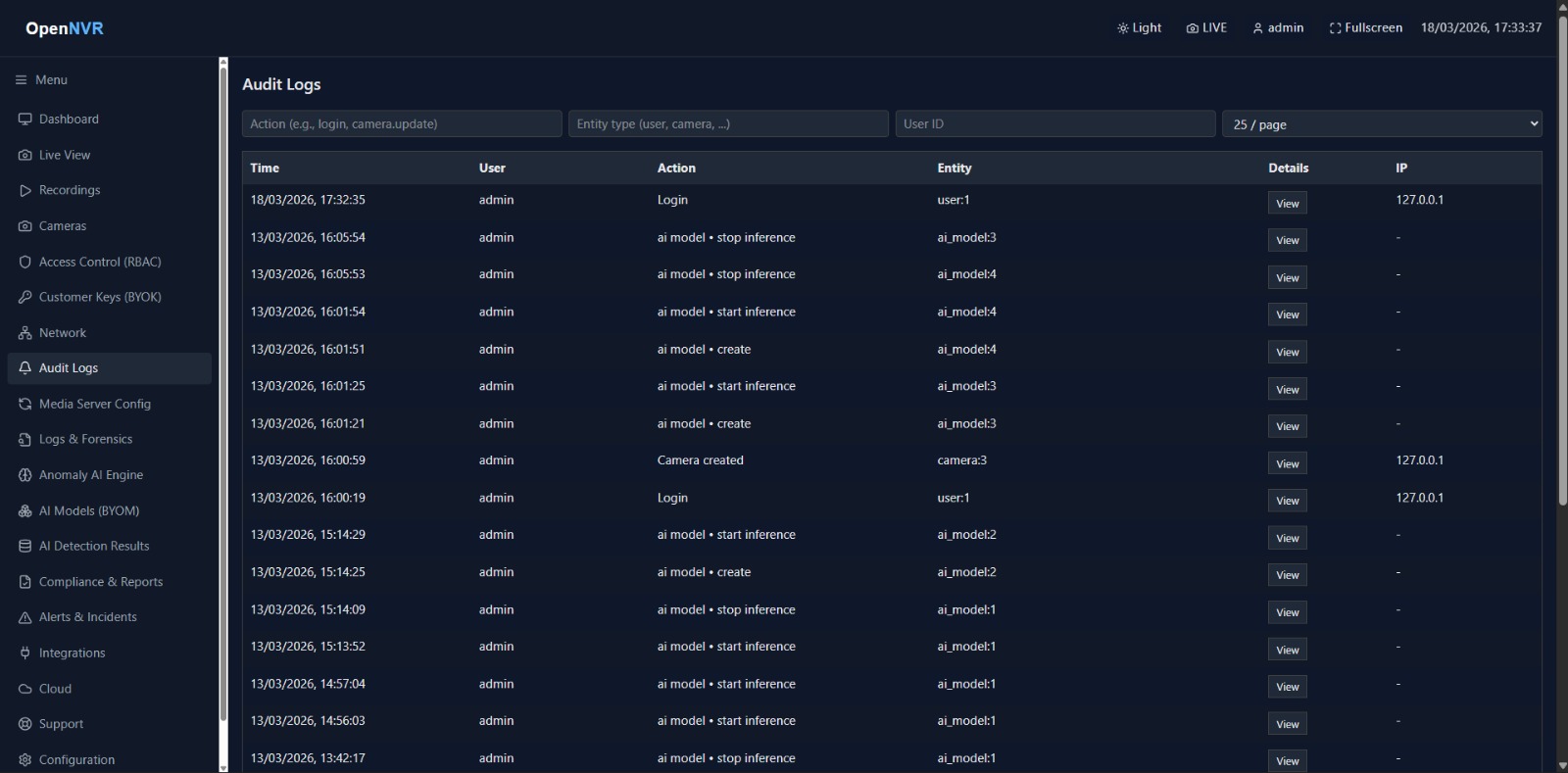
Audit Logs is a searchable record of configuration changes, logins, and administrative actions across the platform. You’ll find it under Audit Logs in the sidebar (route /audit-logs); the older /events path redirects here.
[!NOTE] Viewing audit logs requires the
audit.viewpermission. The underlying API is superuser-gated, so in practice the log is available to administrators.
What you can do here
- Filter the log by action, entity type, or user ID.
- Page through results and choose how many rows to show.
- Inspect any entry’s full detail, including the raw JSON payload of the change.
What gets logged
Each row records an authenticated action with its Time, User, Action, Entity (type and id), a Details payload, and the originating IP. Actions the interface labels with friendly names include:
| Action | Shown as |
|---|---|
login |
Login |
logout |
Logout |
user.create |
User created |
user.update |
User updated |
user.delete |
User deleted |
camera.create |
Camera created |
camera.update |
Camera updated |
camera.delete |
Camera deleted |
camera_config.create |
Camera settings created |
camera_config.update |
Camera settings updated |
camera_config.delete |
Camera settings deleted |
Other actions (for example settings.update, written when media-source/BYOK settings change) appear with a cleaned-up version of their raw identifier.
Filter the log
The filter row sits above the table. Filtering is applied as you type and resets to page 1.
- Action — type an action identifier, e.g.
loginorcamera.update. - Entity type — type an entity, e.g.
userorcamera. - User ID — type a numeric user id to see only that user’s actions.
- Rows per page — pick
10,25,50, or100from the dropdown.
If nothing matches, the page shows “No audit log entries match” with a hint to clear the filters.
Filter fields
| Field | Example | Notes |
|---|---|---|
| Action | login, camera.update |
Exact action identifier |
| Entity type | user, camera |
The kind of object acted on |
| User ID | 1 |
Numeric account id, not username |
| Rows per page | 25 |
10 / 25 / 50 / 100 |
[!NOTE] The list interface filters by action, entity type, and user id. The backend
audit-logsendpoint additionally acceptsstartandenddate-range parameters, though the current UI does not expose date pickers.
Inspect an entry
- Click View in the Details column of any row. The Audit log details dialog opens.
- Review the summary fields (Time, User, Action, IP, Entity).
- Read the Raw JSON block for the full change payload, and use Copy to copy it to the clipboard.
[!TIP] Use the Copy button on the Raw JSON block to paste an exact record into an incident ticket or report — it preserves the full, unformatted payload.
📸 Screenshots to capture
Capture these from the running app and save them to opennvr-site/public/screenshots/ with the exact filenames below:
audit-logs-filters.png— the filter row (Action, Entity type, User ID, rows-per-page) above a populated table.audit-logs-detail.png— the Audit log details dialog open, showing the summary fields and the Raw JSON block with the Copy button.