Media Server Config
Configure the MediaMTX media server behind OpenNVR — protocols, logging, recording defaults, and live per-stream recording control.
On this page
Media Server Config is where you tune the MediaMTX media server that ingests and restreams every camera. You’ll find it under Administration → Media Server Config in the sidebar (route /updates); the page itself is titled Media Server Configuration.
[!NOTE] Viewing requires the
firmware.viewpermission. Editing is superuser-only — non-superusers see the forms in read-only mode with a “Restricted Access: Read-only mode enabled.” banner. A status pill in the top-right shows the connected server version (or Connecting…).
What you can do here
- Set recording defaults (format, path pattern, segment length, retention) that apply to every camera unless overridden.
- Choose the RTSP transport and on-demand behavior used when pulling from cameras.
- Toggle which streaming protocols (RTSP, HLS, WebRTC, RTMP) the server exposes, and set the log level and timeouts.
- Watch active streams in real time and start/stop recording per camera.
- Switch any config section between the Easy form editor and a raw JSON editor.
The Configuration Section dropdown at the top switches between the three areas below:
- Path Defaults (Recording & Streams)
- Global Settings (Protocols & Logging)
- Active Streams Monitor
For the two editable sections, the Edit Mode toggle picks Easy (form) or JSON (raw text). Each editable section has a Revert button (discards unsaved edits) and a Save Changes button.
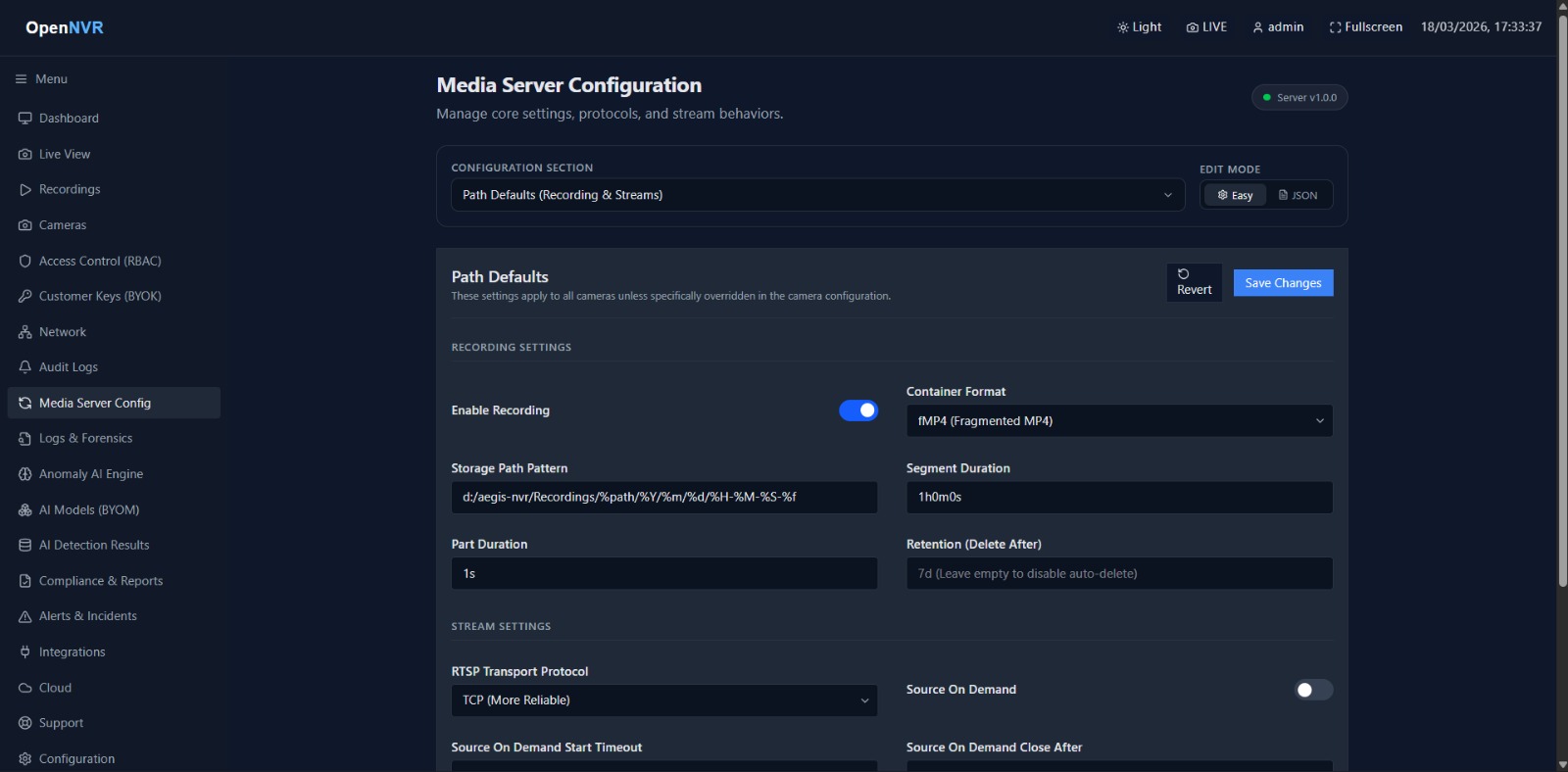
Path Defaults
These settings apply to all cameras unless a camera overrides them in its own configuration.
- In Configuration Section, choose Path Defaults (Recording & Streams).
- Adjust the Recording Settings and Stream Settings (see the tables below).
- Click Save Changes. Recording changes usually take effect immediately for new segments.
Recording Settings
| Field | Required | Example | Notes |
|---|---|---|---|
| Enable Recording | — | (toggle) | Master switch for recording on new paths |
| Container Format | — | fMP4 (Fragmented MP4) |
Options: fmp4, mpegts (MPEG-TS), mkv (Matroska) |
| Storage Path Pattern | — | /data/recordings/%path/%Y/%m/%d/... |
Template with strftime-style tokens |
| Segment Duration | — | 1h0m0s |
When a new recording file is started |
| Part Duration | — | 1s |
fMP4 part length — flush/seek granularity inside a file |
| Retention (Delete After) | — | 7d |
Leave empty to disable auto-delete |
Stream Settings
| Field | Required | Example | Notes |
|---|---|---|---|
| RTSP Transport Protocol | — | tcp |
Options: tcp (More Reliable), udp (Faster), udpMulticast, http (HTTP Tunneling) |
| Source On Demand | — | (toggle) | Only pull from the camera when a viewer is watching |
| Source On Demand Start Timeout | — | 10s |
How long to wait for the source to start |
| Source On Demand Close After | — | 10s |
Idle time before the source is closed |
| Max Viewers (0 = unlimited) | — | 0 |
Cap on concurrent readers per path |
Global Settings
- In Configuration Section, choose Global Settings (Protocols & Logging).
- Toggle protocols and set logging/timeouts.
- Click Save Changes.
[!NOTE] Modifying protocol ports or addresses may require a full server restart to take effect.
Protocols
| Field | Required | Example | Notes |
|---|---|---|---|
| Enable RTSP | — | (toggle) | RTSP ingest/restream |
| Enable HLS | — | (toggle) | HLS playback |
| Enable WebRTC | — | (toggle) | Low-latency browser Live View |
| Enable RTMP | — | (toggle) | RTMP restream |
System & Logging
| Field | Required | Example | Notes |
|---|---|---|---|
| Log Level | — | info |
Options: error (Least Verbose), warn (Warning), info (Standard), debug (Most Verbose) |
| Read Timeout | — | 10s |
Socket read timeout |
| Write Timeout | — | 10s |
Socket write timeout |
Active Streams
- In Configuration Section, choose Active Streams Monitor.
- Click Refresh List to pull the current paths.
The table shows every active media path:
| Column | What it shows |
|---|---|
| Path Name | The MediaMTX path (e.g. cam-3) |
| Active Readers | Number of connected clients |
| Recording Status | ● Recording or ○ Idle |
| Actions | Start Recording / Stop Recording for camera paths |
Paths that don’t map to a camera are labelled System Path and have no recording action.
[!TIP] Start/Stop Recording here toggles recording live for a single camera without changing the Path Defaults. It is superuser-only.
📸 Screenshots to capture
Save these to opennvr-site/public/screenshots/ with the exact filenames below:
media-server-global-settings.png— the Global Settings section showing the RTSP/HLS/WebRTC/RTMP toggles and the Log Level dropdown.media-server-active-streams.png— the Active Streams table with at least onecam-*path, its reader count, recording status, and the Start/Stop Recording action.